Orange Button Field
From floor plan to proof on site.
Field puts every penetration in the installer’s hand. From a BIM design, or straight from PDF floor plans: record what you find, choose the certified penetration seal and prove what was done, also where there is no signal.
Works without signal
Download the project before you go. Everything recorded offline is saved on the phone and synced as soon as you’re back online.
No BIM model needed
Work from PDF floor plans: record every penetration on the plan, and the app proposes the solutions from your manufacturers that fit.
Proof for handover
A photo, a status and messages per penetration build a traceable record of every seal in Office.
Video tour · Field
The Field app on site.
Five short videos: work offline, find your way on the floor plans, record penetrations, choose the solution and prove the work with photos.
01Working offline and syncing
Read the transcript
01 Working offline and syncing
Your installers record their work on site with the Orange Button Field app. Their projects are on the start screen.
Sites often have no signal. So before you go, download the project. Tap the download icon and choose what to take along: the solutions and components, and the images.
The download takes a minute or so. Keep the app open until it's done.
Then a message tells you the project is ready for offline use.
The crossed-out cloud at the top shows you're working offline. Everything you record is saved on the phone.
Under Account, Offline settings decide which manufacturer libraries stay on the phone. With them, you can choose a solution without a connection.
Back online? Press and hold the project, and tap Synchronize.
Your changes go to Orange Button Office. A message confirms that the sync has been submitted.
Under Sync you see every synchronization. Open one to see what it sent: here, one floor plan with two activities.
And there it is: sync complete. In Office, the work from site is now there for the whole team.
In the next video we open a project and find our way around its floor plans and activities.
02 Floor plans and activities
Open a project. Info shows its progress: how many activities have each status. Below it are the address and the team.
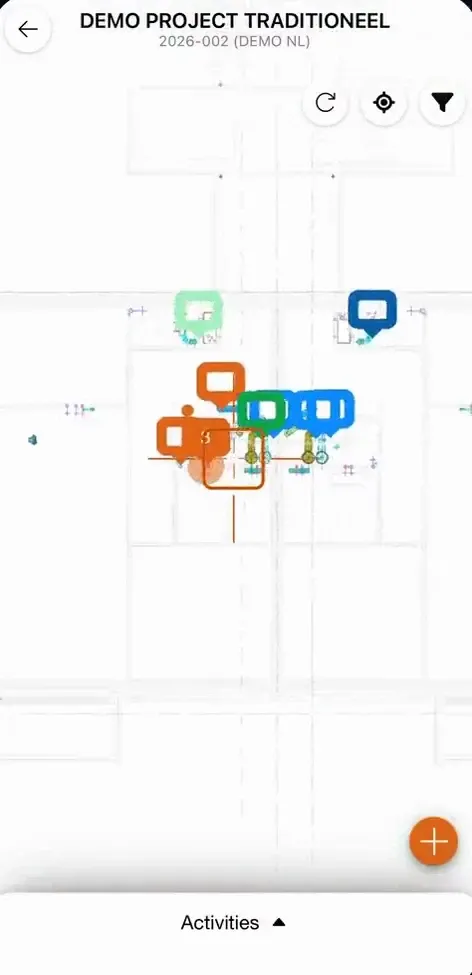
Under Plans, every floor has its own floor plan, with the status of its activities.
Open a floor. Each marker on the plan is an activity: one penetration to seal. Its colour shows the status. Tap a marker, and the activity appears in the list below.
The filter shows only what you need. Filter on status, on the construction, or on the installation. Here, only the shaft flexible walls.
Switch everything back on to see the whole plan again.
Activities lists everything in the project. Your own activities are at the top, the rest below.
A multi-service installation folds open to show the services inside it.
In the next video you record a penetration that isn't on the plan yet.
03 Recording a penetration
Found a penetration that isn't on the plan yet? Tap the plus, and put the cross on its spot.
The app gives it the next free number. You can add a comment or a photo.
Choose the construction it passes through, its thickness and its fire rating. The app needs these to propose a solution.
Then the opening, and whether one service passes through, or several.
Pick what passes through: here, a multilayer pipe. Add its material, shape and diameter, and the insulation. Then tap Create.
The new activity is on the plan, with the status New.
Several services through one opening? Choose Multiservice. Each service gets its own number under the same opening.
Add each service with the plus: what it is, and its size.
Tap Create, and the multi-service installation is on the plan, with its services inside.
You can also copy an activity. Press and hold it in the list, choose Duplicate, and place the copy on the plan.
Then change the copy where it differs. This one goes through a floor of 200 millimetres, with a fire rating of 60 minutes.
Next, you choose the solution or the components you install.
04 Choosing a solution or components
Open an activity. Its details are filled in: the construction, the opening and the installation.
Tap Select solution or components. The app lists every solution from your manufacturers that fits this situation.
Tap the one you install, and confirm.
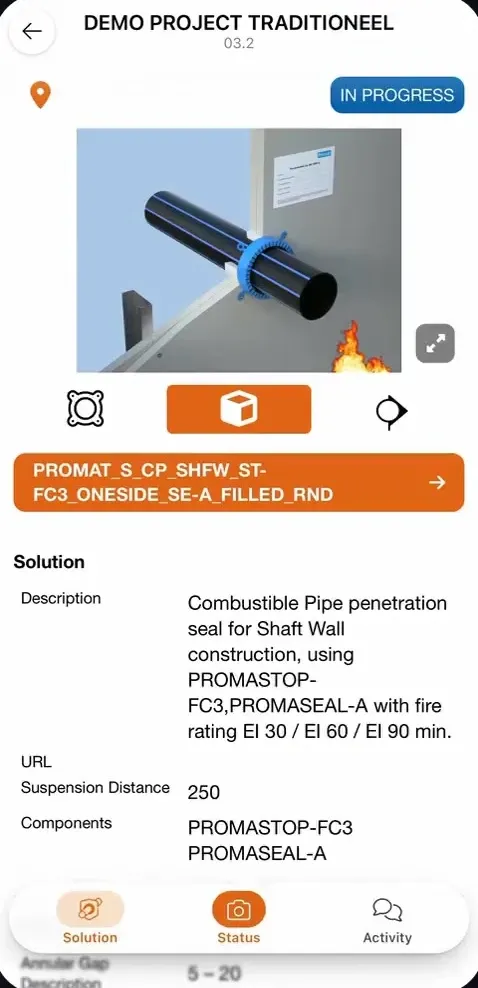
The activity now shows the solution: a 3D image of the finished seal, its description, the fire rating it is approved for, and the components it is made of.
If no solution fits, you can still choose the components you use, filtered by manufacturer.
Confirm, and the activity is saved with those components.
In the next video you take a photo, set the status and leave a message.
05 Photos, status and messages
Every activity has its own messages. Changes are logged there, like the solution that was chosen. And you can tell the office what you found on site.
When the seal is in place, take a photo of it.
Then set the status: done, approved, damaged, and so on. The photo is saved with the activity, as proof of the work.
Add a message if you like. Now the activity is up to date for everyone on the project.
This works offline too. The photo and the status go to Office with your next sync.
That's the Orange Button Field app: from the plan on your phone to proof of every firestop in Office. Thanks for watching.
What the Field app does
- 01
Offline on site
Basements and stairwells rarely have reception. Take the project, its solutions and images along, and synchronise when you’re back online.
- Choose which manufacturer libraries stay on the phone
- See every sync and what it sent
- Work from site lands in Office for the whole team
- 02
Floor plans and activities
Every floor has its plan, every marker is a penetration to seal, and its colour shows the status.
- Filter on status, construction or installation
- Your own activities at the top
- Multi-service openings fold open to show their services
- 03
Record what you find
Found a penetration that isn’t on the plan? Put it on the plan and enter the construction, its thickness and fire rating, the opening and what passes through.
- One service or a multi-service opening
- Duplicate an activity and change what differs
- A comment or photo with every activity
- 04
Solution, photo and status
Pick the solution you install, or the components when no solution fits. Then take a photo of the seal and set its status.
- 3D image, description and fire rating of the solution
- Works offline too
- 05
Chat per penetration
Every penetration has its own conversation. Installer and office discuss what was found on site, and every change is logged automatically.
- Messages between installer and office, per penetration
- An automatic log of every change, like the chosen solution
- Photos and status in the same thread, offline too
Status per seal
Everyone sees where every seal stands.
Every activity has a status, shown as the colour of its marker on the plan and in Office. Filter on status to see what still needs attention.
- NewRecorded, not planned yet.
- ScheduledPlanned for installation.
- In progressThe installer is working on it.
- DoneInstalled, with a photo as proof.
- ApprovedChecked and approved by the office.
- Not approvedNeeds to be redone or changed.
- DamagedThe seal was damaged after installation.
- MaintenanceDue for inspection or maintenance.
Installers set the status on site; the office reviews the work in Orange Button Office and approves it.
Questions
What is Orange Button Field?
A mobile app for installers and site supervisors. It works with Orange Button Office, with or without a BIM model: installers see the plans, record penetrations, choose the solution and document their work with photos and a status.
Do I need a BIM model to use Field?
No. Upload your PDF floor plans in Office and your installers record every penetration on the plan in the app. For a BIM project the clashes are already on the plan.
What if the situation on site does not match the design?
Installers record the deviation with a photo and a comment. The office sees it immediately and can select an alternative certified solution.
Who uses Field?
Installers, with a Field License. Project leaders and site supervisors with an Office License already have access to the Field app, for inspections. So you only pay a Field License for the installers on site.
Can Field be used for firestop inspections?
Yes. Every penetration seal has a status, photos and comments, including approved, not approved, damaged and maintenance. So Field also works for inspecting and maintaining existing fire stopping, with a report as proof.