Orange Button Field
Vom Grundriss zum Nachweis auf der Baustelle.
Field legt jede Durchführung in die Hand des Monteurs. Aus einer BIM-Planung oder direkt aus PDF-Grundrissen: Erfassen Sie, was Sie vorfinden, wählen Sie die zertifizierte Abschottung und weisen Sie nach, was ausgeführt wurde, auch ohne Netz.
Funktioniert ohne Netz
Laden Sie das Projekt vorher herunter. Alles, was offline erfasst wird, bleibt auf dem Handy gespeichert und wird synchronisiert, sobald Sie wieder online sind.
Kein BIM-Modell nötig
Arbeiten Sie mit PDF-Grundrissen: Erfassen Sie jede Durchführung auf dem Plan, und die App schlägt die passenden Lösungen Ihrer Hersteller vor.
Nachweis für die Abnahme
Ein Foto, ein Status und Nachrichten pro Durchführung ergeben in Office eine nachvollziehbare Dokumentation jeder Abschottung.
Videotour · Field
Die Field-App auf der Baustelle.
Fünf kurze Videos: offline arbeiten, sich in den Grundrissen zurechtfinden, Durchführungen erfassen, die Lösung wählen und die Arbeit mit Fotos nachweisen.
01Offline arbeiten und synchronisieren
Transkript lesen
01 Offline arbeiten und synchronisieren
Your installers record their work on site with the Orange Button Field app. Their projects are on the start screen.
Sites often have no signal. So before you go, download the project. Tap the download icon and choose what to take along: the solutions and components, and the images.
The download takes a minute or so. Keep the app open until it's done.
Then a message tells you the project is ready for offline use.
The crossed-out cloud at the top shows you're working offline. Everything you record is saved on the phone.
Under Account, Offline settings decide which manufacturer libraries stay on the phone. With them, you can choose a solution without a connection.
Back online? Press and hold the project, and tap Synchronize.
Your changes go to Orange Button Office. A message confirms that the sync has been submitted.
Under Sync you see every synchronization. Open one to see what it sent: here, one floor plan with two activities.
And there it is: sync complete. In Office, the work from site is now there for the whole team.
In the next video we open a project and find our way around its floor plans and activities.
02 Grundrisse und Aktivitäten
Open a project. Info shows its progress: how many activities have each status. Below it are the address and the team.
Under Plans, every floor has its own floor plan, with the status of its activities.
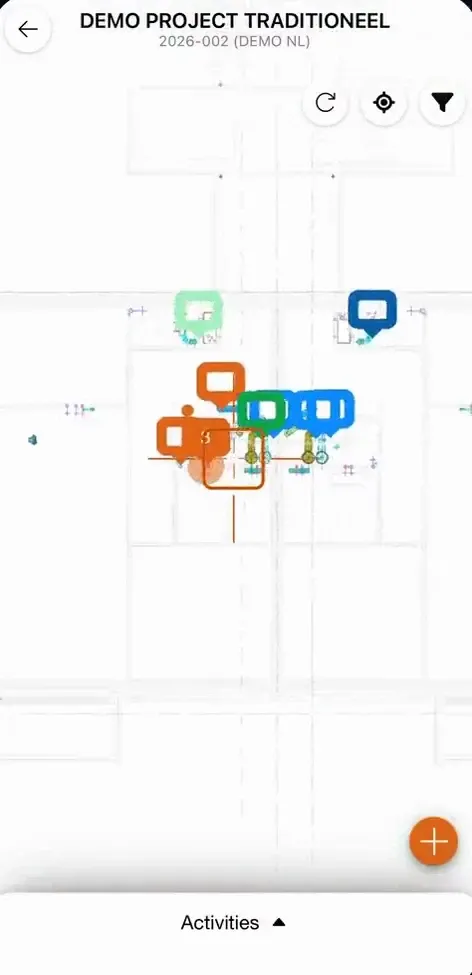
Open a floor. Each marker on the plan is an activity: one penetration to seal. Its colour shows the status. Tap a marker, and the activity appears in the list below.
The filter shows only what you need. Filter on status, on the construction, or on the installation. Here, only the shaft flexible walls.
Switch everything back on to see the whole plan again.
Activities lists everything in the project. Your own activities are at the top, the rest below.
A multi-service installation folds open to show the services inside it.
In the next video you record a penetration that isn't on the plan yet.
03 Eine Durchführung erfassen
Found a penetration that isn't on the plan yet? Tap the plus, and put the cross on its spot.
The app gives it the next free number. You can add a comment or a photo.
Choose the construction it passes through, its thickness and its fire rating. The app needs these to propose a solution.
Then the opening, and whether one service passes through, or several.
Pick what passes through: here, a multilayer pipe. Add its material, shape and diameter, and the insulation. Then tap Create.
The new activity is on the plan, with the status New.
Several services through one opening? Choose Multiservice. Each service gets its own number under the same opening.
Add each service with the plus: what it is, and its size.
Tap Create, and the multi-service installation is on the plan, with its services inside.
You can also copy an activity. Press and hold it in the list, choose Duplicate, and place the copy on the plan.
Then change the copy where it differs. This one goes through a floor of 200 millimetres, with a fire rating of 60 minutes.
Next, you choose the solution or the components you install.
04 Eine Lösung oder Komponenten wählen
Open an activity. Its details are filled in: the construction, the opening and the installation.
Tap Select solution or components. The app lists every solution from your manufacturers that fits this situation.
Tap the one you install, and confirm.
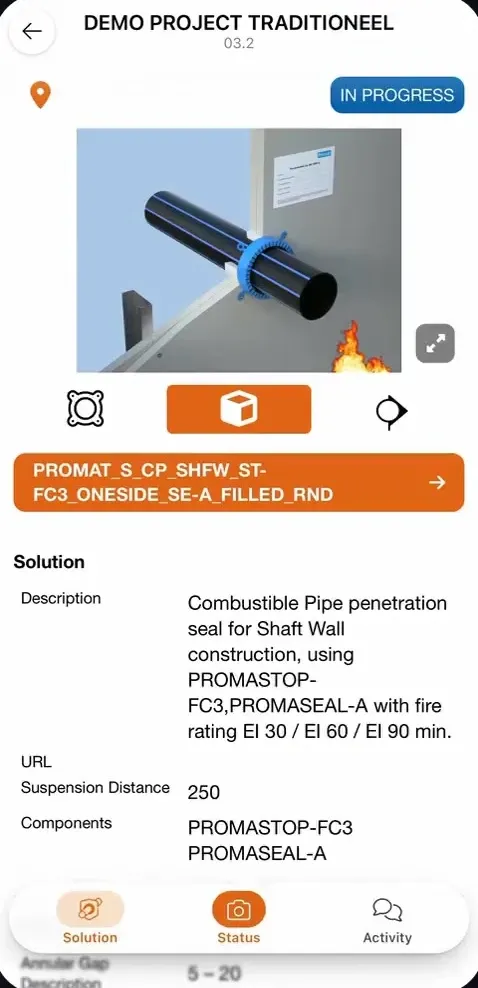
The activity now shows the solution: a 3D image of the finished seal, its description, the fire rating it is approved for, and the components it is made of.
If no solution fits, you can still choose the components you use, filtered by manufacturer.
Confirm, and the activity is saved with those components.
In the next video you take a photo, set the status and leave a message.
05 Fotos, Status und Nachrichten
Every activity has its own messages. Changes are logged there, like the solution that was chosen. And you can tell the office what you found on site.
When the seal is in place, take a photo of it.
Then set the status: done, approved, damaged, and so on. The photo is saved with the activity, as proof of the work.
Add a message if you like. Now the activity is up to date for everyone on the project.
This works offline too. The photo and the status go to Office with your next sync.
That's the Orange Button Field app: from the plan on your phone to proof of every firestop in Office. Thanks for watching.
Was die Field App kann
- 01
Offline auf der Baustelle
In Kellern und Treppenhäusern gibt es selten Empfang. Nehmen Sie das Projekt, seine Lösungen und Bilder mit und synchronisieren Sie, wenn Sie wieder online sind.
- Wählen Sie, welche Herstellerbibliotheken auf dem Handy bleiben
- Jede Synchronisierung und ihr Inhalt im Blick
- Arbeit von der Baustelle landet in Office für das ganze Team
- 02
Grundrisse und Aktivitäten
Jedes Geschoss hat seinen Plan, jede Markierung ist eine abzuschottende Durchführung, und ihre Farbe zeigt den Status.
- Filter nach Status, Bauteil oder Installation
- Ihre eigenen Aktivitäten ganz oben
- Kombiöffnungen klappen auf und zeigen ihre Leitungen
- 03
Erfassen, was Sie vorfinden
Eine Durchführung gefunden, die nicht im Plan ist? Setzen Sie sie auf den Plan und geben Sie das Bauteil, seine Dicke und den Feuerwiderstand, die Öffnung und die durchgeführten Leitungen ein.
- Eine Leitung oder eine Kombiöffnung
- Aktivität duplizieren und nur das Abweichende ändern
- Ein Kommentar oder Foto zu jeder Aktivität
- 04
Lösung, Foto und Status
Wählen Sie die Lösung, die Sie montieren, oder die Komponenten, wenn keine Lösung passt. Machen Sie dann ein Foto der Abschottung und setzen Sie ihren Status.
- 3D-Bild, Beschreibung und Feuerwiderstand der Lösung
- Funktioniert auch offline
- 05
Chat je Durchführung
Jede Durchführung hat ihren eigenen Gesprächsverlauf. Monteur und Büro besprechen dort, was auf der Baustelle vorgefunden wurde, und jede Änderung wird automatisch protokolliert.
- Nachrichten zwischen Monteur und Büro, je Durchführung
- Automatisches Protokoll jeder Änderung, etwa der gewählten Lösung
- Fotos und Status im selben Verlauf, auch offline
Status pro Abschottung
Alle sehen, wo jede Abschottung steht.
Jede Aktivität hat einen Status, sichtbar als Farbe ihrer Markierung auf dem Plan und in Office. Filtern Sie nach Status, um zu sehen, was noch Aufmerksamkeit braucht.
- NewErfasst, noch nicht geplant.
- ScheduledFür die Montage eingeplant.
- In progressDer Monteur arbeitet daran.
- DoneMontiert, mit Foto als Nachweis.
- ApprovedVom Büro geprüft und freigegeben.
- Not approvedMuss neu ausgeführt oder geändert werden.
- DamagedDie Abschottung wurde nach der Montage beschädigt.
- MaintenancePrüfung oder Wartung fällig.
Monteure setzen den Status auf der Baustelle; das Büro prüft die Arbeit in Orange Button Office und gibt sie frei.
Fragen
Was ist Orange Button Field?
Eine mobile App für Monteure und Bauleiter. Sie arbeitet mit Orange Button Office zusammen, mit oder ohne BIM-Modell: Monteure sehen die Pläne, erfassen Durchführungen, wählen die Lösung und dokumentieren ihre Arbeit mit Fotos und einem Status.
Brauche ich ein BIM-Modell, um Field zu nutzen?
Nein. Laden Sie Ihre PDF-Grundrisse in Office hoch, und Ihre Monteure erfassen jede Durchführung in der App auf dem Plan. Bei einem BIM-Projekt sind die Clashes bereits auf dem Plan.
Was, wenn die Situation auf der Baustelle nicht der Planung entspricht?
Monteure erfassen die Abweichung mit einem Foto und einem Kommentar. Das Büro sieht sie sofort und kann eine alternative zertifizierte Lösung auswählen.
Wer nutzt Field?
Monteure, mit einer Field-Lizenz. Projektleiter und Bauleiter mit einer Office-Lizenz haben bereits Zugang zur Field-App, für Kontrollen. Sie zahlen also nur für die Monteure auf der Baustelle eine Field-Lizenz.
Kann Field für Brandschutzprüfungen genutzt werden?
Ja. Jede Abschottung hat einen Status, Fotos und Kommentare, darunter Approved, Not approved, Damaged und Maintenance. Damit eignet sich Field auch für die Prüfung und Wartung bestehender Abschottungen, mit einem Bericht als Nachweis.