Orange Button Field
Del plano a la evidencia en obra.
Field pone cada paso de instalaciones en manos del instalador. Desde un diseño BIM o directamente desde planos PDF: registra lo que encuentras, elige el sellado cortafuego certificado y demuestra lo que se ha hecho, también donde no hay cobertura.
Funciona sin cobertura
Descarga el proyecto antes de ir. Todo lo que registras sin conexión se guarda en el móvil y se sincroniza en cuanto vuelves a estar en línea.
Sin necesidad de modelo BIM
Trabaja con planos PDF: registra cada paso en el plano y la app propone las soluciones de tus fabricantes que encajan.
Evidencias para la entrega
Una foto, un estado y mensajes por paso crean en Office un registro trazable de cada sellado.
Tour en vídeo · Field
La app Field en obra.
Cinco vídeos cortos: trabaja sin conexión, oriéntate en los planos, registra pasos, elige la solución y demuestra el trabajo con fotos.
01Trabajar sin conexión y sincronizar
Leer la transcripción
01 Trabajar sin conexión y sincronizar
Your installers record their work on site with the Orange Button Field app. Their projects are on the start screen.
Sites often have no signal. So before you go, download the project. Tap the download icon and choose what to take along: the solutions and components, and the images.
The download takes a minute or so. Keep the app open until it's done.
Then a message tells you the project is ready for offline use.
The crossed-out cloud at the top shows you're working offline. Everything you record is saved on the phone.
Under Account, Offline settings decide which manufacturer libraries stay on the phone. With them, you can choose a solution without a connection.
Back online? Press and hold the project, and tap Synchronize.
Your changes go to Orange Button Office. A message confirms that the sync has been submitted.
Under Sync you see every synchronization. Open one to see what it sent: here, one floor plan with two activities.
And there it is: sync complete. In Office, the work from site is now there for the whole team.
In the next video we open a project and find our way around its floor plans and activities.
02 Planos y actividades
Open a project. Info shows its progress: how many activities have each status. Below it are the address and the team.
Under Plans, every floor has its own floor plan, with the status of its activities.
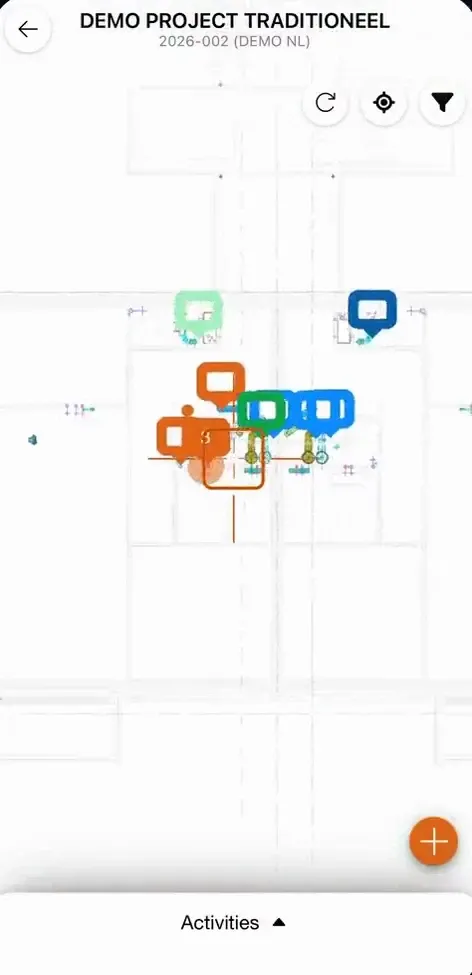
Open a floor. Each marker on the plan is an activity: one penetration to seal. Its colour shows the status. Tap a marker, and the activity appears in the list below.
The filter shows only what you need. Filter on status, on the construction, or on the installation. Here, only the shaft flexible walls.
Switch everything back on to see the whole plan again.
Activities lists everything in the project. Your own activities are at the top, the rest below.
A multi-service installation folds open to show the services inside it.
In the next video you record a penetration that isn't on the plan yet.
03 Registrar un paso
Found a penetration that isn't on the plan yet? Tap the plus, and put the cross on its spot.
The app gives it the next free number. You can add a comment or a photo.
Choose the construction it passes through, its thickness and its fire rating. The app needs these to propose a solution.
Then the opening, and whether one service passes through, or several.
Pick what passes through: here, a multilayer pipe. Add its material, shape and diameter, and the insulation. Then tap Create.
The new activity is on the plan, with the status New.
Several services through one opening? Choose Multiservice. Each service gets its own number under the same opening.
Add each service with the plus: what it is, and its size.
Tap Create, and the multi-service installation is on the plan, with its services inside.
You can also copy an activity. Press and hold it in the list, choose Duplicate, and place the copy on the plan.
Then change the copy where it differs. This one goes through a floor of 200 millimetres, with a fire rating of 60 minutes.
Next, you choose the solution or the components you install.
04 Elegir una solución o componentes
Open an activity. Its details are filled in: the construction, the opening and the installation.
Tap Select solution or components. The app lists every solution from your manufacturers that fits this situation.
Tap the one you install, and confirm.
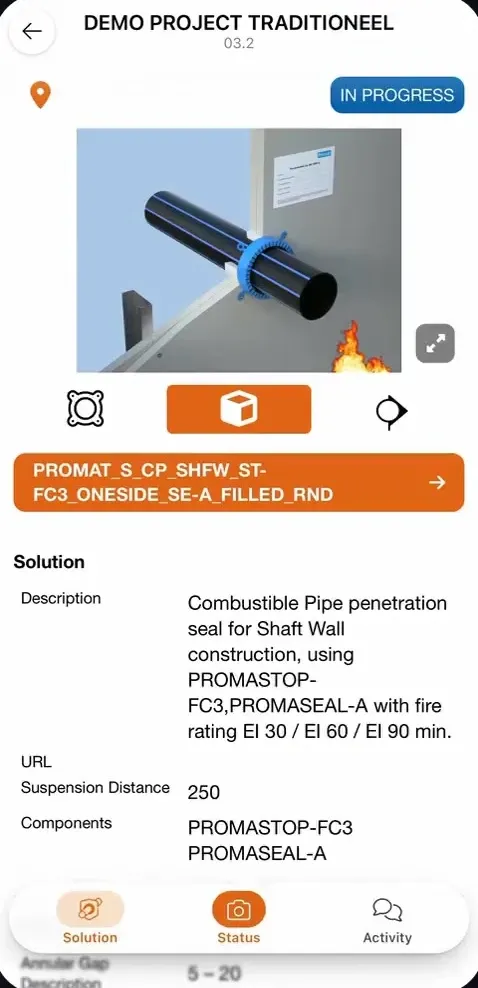
The activity now shows the solution: a 3D image of the finished seal, its description, the fire rating it is approved for, and the components it is made of.
If no solution fits, you can still choose the components you use, filtered by manufacturer.
Confirm, and the activity is saved with those components.
In the next video you take a photo, set the status and leave a message.
05 Fotos, estado y mensajes
Every activity has its own messages. Changes are logged there, like the solution that was chosen. And you can tell the office what you found on site.
When the seal is in place, take a photo of it.
Then set the status: done, approved, damaged, and so on. The photo is saved with the activity, as proof of the work.
Add a message if you like. Now the activity is up to date for everyone on the project.
This works offline too. The photo and the status go to Office with your next sync.
That's the Orange Button Field app: from the plan on your phone to proof of every firestop in Office. Thanks for watching.
Qué hace la app Field
- 01
Sin conexión en obra
En sótanos y escaleras rara vez hay cobertura. Llévate el proyecto, sus soluciones e imágenes, y sincroniza cuando vuelvas a estar en línea.
- Elige qué bibliotecas de fabricantes se quedan en el móvil
- Ve cada sincronización y lo que envió
- El trabajo de obra llega a Office para todo el equipo
- 02
Planos y actividades
Cada planta tiene su plano, cada marcador es un paso por sellar y su color indica el estado.
- Filtra por estado, construcción o instalación
- Tus propias actividades arriba
- Los pasos mixtos se despliegan para mostrar sus instalaciones
- 03
Registra lo que encuentras
¿Has encontrado un paso que no está en el plano? Colócalo en el plano e indica la construcción, su espesor y resistencia al fuego, el hueco y lo que lo atraviesa.
- Una instalación o un paso mixto
- Duplica una actividad y cambia lo que difiera
- Un comentario o una foto en cada actividad
- 04
Solución, foto y estado
Elige la solución que instalas, o los componentes cuando ninguna solución encaja. Después haz una foto del sellado y fija su estado.
- Imagen 3D, descripción y resistencia al fuego de la solución
- También funciona sin conexión
- 05
Chat por paso de instalaciones
Cada paso de instalaciones tiene su propia conversación. El instalador y la oficina comentan lo que se ha encontrado en obra, y cada cambio queda registrado automáticamente.
- Mensajes entre instalador y oficina, por paso
- Un registro automático de cada cambio, como la solución elegida
- Fotos y estado en el mismo hilo, también sin conexión
Estado por sellado
Todos ven en qué punto está cada sellado.
Cada actividad tiene un estado, que se muestra como el color de su marcador en el plano y en Office. Filtra por estado para ver qué requiere aún atención.
- NewRegistrado, aún sin planificar.
- ScheduledPlanificado para su instalación.
- In progressEl instalador está trabajando en ello.
- DoneInstalado, con una foto como evidencia.
- ApprovedRevisado y aprobado por la oficina.
- Not approvedHay que rehacerlo o modificarlo.
- DamagedEl sellado se dañó después de la instalación.
- MaintenancePendiente de inspección o mantenimiento.
Los instaladores fijan el estado en obra; la oficina revisa el trabajo en Orange Button Office y lo aprueba.
Preguntas
¿Qué es Orange Button Field?
Una app móvil para instaladores y jefes de obra. Funciona con Orange Button Office, con o sin modelo BIM: los instaladores ven los planos, registran pasos, eligen la solución y documentan su trabajo con fotos y un estado.
¿Necesito un modelo BIM para usar Field?
No. Sube tus planos PDF a Office y tus instaladores registran cada paso en el plano desde la app. En un proyecto BIM, los clashes ya están en el plano.
¿Y si la situación en obra no coincide con el diseño?
Los instaladores registran la desviación con una foto y un comentario. La oficina lo ve al instante y puede seleccionar otra solución certificada.
¿Quién usa Field?
Los instaladores, con una licencia Field. Los jefes de proyecto y jefes de obra con licencia Office ya tienen acceso a la app Field, para inspecciones. Así solo pagas una licencia Field por los instaladores en obra.
¿Se puede usar Field para inspeccionar sellados cortafuego?
Sí. Cada sellado tiene un estado, fotos y comentarios, incluidos Approved, Not approved, Damaged y Maintenance. Así, Field también sirve para inspeccionar y mantener sellados existentes, con un informe como evidencia.