Orange Button Field
Van plattegrond tot bewijs op de bouwplaats.
Met Field heeft de monteur elke doorvoering in handen. Vanuit een BIM-ontwerp of direct vanaf PDF-plattegronden: leg vast wat je aantreft, kies de gecertificeerde brandwerende afdichting en toon aan wat er gedaan is, ook zonder bereik.
Werkt zonder bereik
Download het project voordat je vertrekt. Alles wat je offline vastlegt, blijft op de telefoon bewaard en wordt gesynchroniseerd zodra je weer online bent.
Geen BIM-model nodig
Werk vanaf PDF-plattegronden: leg elke doorvoering vast op de plattegrond en de app stelt de passende oplossingen van jouw fabrikanten voor.
Bewijs voor de oplevering
Met een foto, een status en berichten per doorvoering bouw je in Office een traceerbaar dossier op van elke afdichting.
Videotour · Field
De Field-app op de bouwplaats.
Vijf korte video's: werk offline, vind je weg op de plattegronden, leg doorvoeringen vast, kies de oplossing en leg het werk vast met foto's als bewijs.
01Offline werken en synchroniseren
Lees het transcript
01 Offline werken en synchroniseren
Your installers record their work on site with the Orange Button Field app. Their projects are on the start screen.
Sites often have no signal. So before you go, download the project. Tap the download icon and choose what to take along: the solutions and components, and the images.
The download takes a minute or so. Keep the app open until it's done.
Then a message tells you the project is ready for offline use.
The crossed-out cloud at the top shows you're working offline. Everything you record is saved on the phone.
Under Account, Offline settings decide which manufacturer libraries stay on the phone. With them, you can choose a solution without a connection.
Back online? Press and hold the project, and tap Synchronize.
Your changes go to Orange Button Office. A message confirms that the sync has been submitted.
Under Sync you see every synchronization. Open one to see what it sent: here, one floor plan with two activities.
And there it is: sync complete. In Office, the work from site is now there for the whole team.
In the next video we open a project and find our way around its floor plans and activities.
02 Plattegronden en activiteiten
Open a project. Info shows its progress: how many activities have each status. Below it are the address and the team.
Under Plans, every floor has its own floor plan, with the status of its activities.
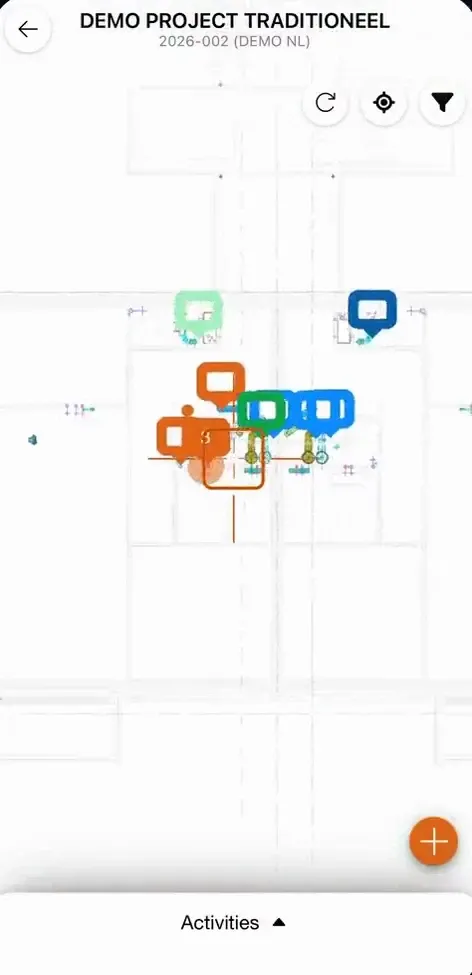
Open a floor. Each marker on the plan is an activity: one penetration to seal. Its colour shows the status. Tap a marker, and the activity appears in the list below.
The filter shows only what you need. Filter on status, on the construction, or on the installation. Here, only the shaft flexible walls.
Switch everything back on to see the whole plan again.
Activities lists everything in the project. Your own activities are at the top, the rest below.
A multi-service installation folds open to show the services inside it.
In the next video you record a penetration that isn't on the plan yet.
03 Een doorvoering vastleggen
Found a penetration that isn't on the plan yet? Tap the plus, and put the cross on its spot.
The app gives it the next free number. You can add a comment or a photo.
Choose the construction it passes through, its thickness and its fire rating. The app needs these to propose a solution.
Then the opening, and whether one service passes through, or several.
Pick what passes through: here, a multilayer pipe. Add its material, shape and diameter, and the insulation. Then tap Create.
The new activity is on the plan, with the status New.
Several services through one opening? Choose Multiservice. Each service gets its own number under the same opening.
Add each service with the plus: what it is, and its size.
Tap Create, and the multi-service installation is on the plan, with its services inside.
You can also copy an activity. Press and hold it in the list, choose Duplicate, and place the copy on the plan.
Then change the copy where it differs. This one goes through a floor of 200 millimetres, with a fire rating of 60 minutes.
Next, you choose the solution or the components you install.
04 Een oplossing of componenten kiezen
Open an activity. Its details are filled in: the construction, the opening and the installation.
Tap Select solution or components. The app lists every solution from your manufacturers that fits this situation.
Tap the one you install, and confirm.
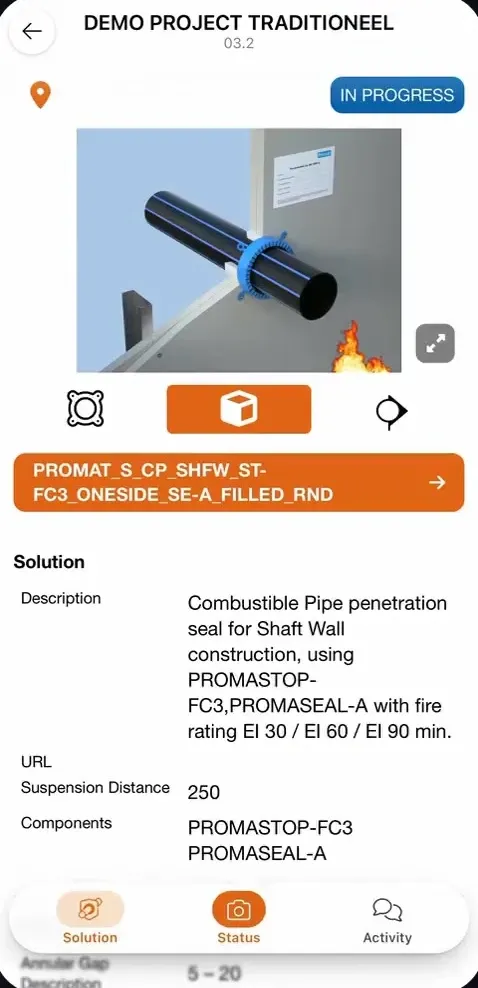
The activity now shows the solution: a 3D image of the finished seal, its description, the fire rating it is approved for, and the components it is made of.
If no solution fits, you can still choose the components you use, filtered by manufacturer.
Confirm, and the activity is saved with those components.
In the next video you take a photo, set the status and leave a message.
05 Foto's, status en berichten
Every activity has its own messages. Changes are logged there, like the solution that was chosen. And you can tell the office what you found on site.
When the seal is in place, take a photo of it.
Then set the status: done, approved, damaged, and so on. The photo is saved with the activity, as proof of the work.
Add a message if you like. Now the activity is up to date for everyone on the project.
This works offline too. The photo and the status go to Office with your next sync.
That's the Orange Button Field app: from the plan on your phone to proof of every firestop in Office. Thanks for watching.
Wat de Field-app doet
- 01
Offline op de bouwplaats
In kelders en trappenhuizen is zelden bereik. Neem het project, de oplossingen en de afbeeldingen mee en synchroniseer zodra je weer online bent.
- Kies welke fabrikantbibliotheken op de telefoon blijven
- Bekijk elke synchronisatie en wat er is verstuurd
- Werk van de bouwplaats komt in Office, zichtbaar voor het hele team
- 02
Plattegronden en activiteiten
Elke verdieping heeft een plattegrond, elke marker is een doorvoering die afgedicht moet worden en de kleur toont de status.
- Filter op status, constructie of installatie
- Je eigen activiteiten bovenaan
- Multi-service sparingen klap je open om de installaties te zien
- 03
Leg vast wat je aantreft
Een doorvoering gevonden die niet op de plattegrond staat? Zet hem erop en vul de constructie (dikte en brandwerendheid), de sparing en de doorgaande installaties in.
- Eén installatie of een multi-service sparing
- Dupliceer een activiteit en pas aan wat anders is
- Een opmerking of foto bij elke activiteit
- 04
Oplossing, foto en status
Kies de oplossing die je monteert, of de losse componenten als geen oplossing past. Maak daarna een foto van de afdichting en stel de status in.
- 3D-afbeelding, omschrijving en brandwerendheid van de oplossing
- Werkt ook offline
- 05
Chat per doorvoering
Elke doorvoering heeft een eigen gesprek. Monteur en kantoor overleggen daar over wat er op de bouwplaats is aangetroffen, en elke wijziging wordt automatisch vastgelegd.
- Berichten tussen monteur en kantoor, per doorvoering
- Automatische log van elke wijziging, zoals de gekozen oplossing
- Foto’s en status in hetzelfde gesprek, ook offline
Status per afdichting
Iedereen ziet hoe elke afdichting ervoor staat.
Elke activiteit heeft een status, zichtbaar aan de kleur van de marker, op de plattegrond en in Office. Filter op status om te zien wat nog aandacht nodig heeft.
- NewVastgelegd, nog niet ingepland.
- ScheduledIngepland voor montage.
- In progressDe monteur is ermee bezig.
- DoneGemonteerd, met een foto als bewijs.
- ApprovedGecontroleerd en goedgekeurd door kantoor.
- Not approvedMoet opnieuw of anders worden uitgevoerd.
- DamagedDe afdichting is na montage beschadigd.
- MaintenanceToe aan inspectie of onderhoud.
Monteurs stellen de status in op de bouwplaats; kantoor beoordeelt het werk in Orange Button Office en keurt het goed.
Vragen
Wat is Orange Button Field?
Een mobiele app voor monteurs en uitvoerders. Hij werkt samen met Orange Button Office, met of zonder BIM-model: monteurs zien de plattegronden, leggen doorvoeringen vast, kiezen de oplossing en documenteren hun werk met foto's en een status.
Heb ik een BIM-model nodig om Field te gebruiken?
Nee. Upload je PDF-plattegronden in Office en je monteurs leggen elke doorvoering in de app vast op de plattegrond. Bij een BIM-project staan de clashes al op de plattegrond.
Wat als de situatie op de bouwplaats niet overeenkomt met het ontwerp?
Monteurs leggen de afwijking vast met een foto en een opmerking. Kantoor ziet dat direct en kan een andere gecertificeerde oplossing kiezen.
Wie gebruikt Field?
Monteurs, met een Field-licentie. Projectleiders en uitvoerders met een Office-licentie hebben al toegang tot de Field-app, voor inspecties. Je betaalt dus alleen een Field-licentie voor de monteurs op de bouwplaats.
Kan ik Field ook gebruiken voor inspecties van brandwerende afdichtingen?
Ja. Elke brandwerende afdichting heeft foto's, opmerkingen en een status, zoals Approved, Not approved, Damaged of Maintenance. Zo werkt Field ook voor het inspecteren en onderhouden van bestaande brandwerende afdichtingen, met een rapport als bewijs.