OB MANUFACTURER IMPLEMENTATION TIME
Orange Button is making significant progress in connecting manufacturers and end-users within the passive fire industry. Since our platform is designed to compare every firestop solution, the implementation of a specific manufacturer’s products requires a tailored approach.
Let’s begin with what our platform Needs.
Solution List
A firestopping manufacturer supplies a range of fire protection products, typically including sealants (acrylic, intumescent), wraps, collars, boards, foams, panels, and sleeves, among others.
These products are tested in specific combinations for defined scenarios. For example, in a 30-minute fire-rated flexible wall penetrated by a 110 mm PVC pipe, a tested configuration might consist of a collar used together with a firestop board and a coating.
When these components are applied in a particular manner to address a specific situation, we refer to this as a Solution.
Our Solution List, is a list of all these specific Solution, and are sorted by first selection criteria. These criteria are:
- InstallationTypes (Combustible Pipes, Non- Combustible Pipes, Cable Trays, etc.)
- InsulationTypes (Non-Combustible Insulation, Combustible Insulation)
- MSP Types, only when applicable to a system (for instance, AF Brick, AF Panel)
- ConstructionTypes (Solid Wall, Flexible Wall, etc)
- Aperture Shape (Round, Rectangular.
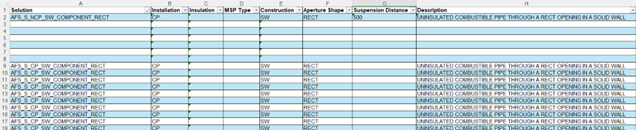
Typically a Solution List will contain around 500 – 1000 Solutions per Manufacturer.
Solution Files
You can think of our platform as a web shop—filled with images, objects, and other digital assets that are displayed across all Orange Button pages, reports, and applications.
Therefore, every Solution needs a:
- List of Manufacturers Components (materials) used.
- Section Image, with mostly a technical view of the Solution.
- 3D Image, with mostly a visual attractive view of the Solution.
- Revit Family, created by Orange Button.
- 3D Object, create by Orange Button, or delivered by Manufacturer in .obj file format.
- Field of Application, describing the selection criteria of a Solution.
Note that you can use the Solution List to ‘map’ files to the same solutions. For instance, when you have five Solutions, but they all use the same Section Image, you can just name the Section Image in the Solution Excel. Upon Upload, the Section will be automatically added to all 5 Solution with the Section File Name as value. This goes for all file types.
Orange Button Manufacturer platform
The Solution List and Solution Files can be prepared in advance—before any Solution is even integrated into the platform. Once ready, all Solution and Files can be upload in one go, using our Batch Upload functionality. This will generate the Solution List on our platform, with each Solution displayed on its own dedicated page.
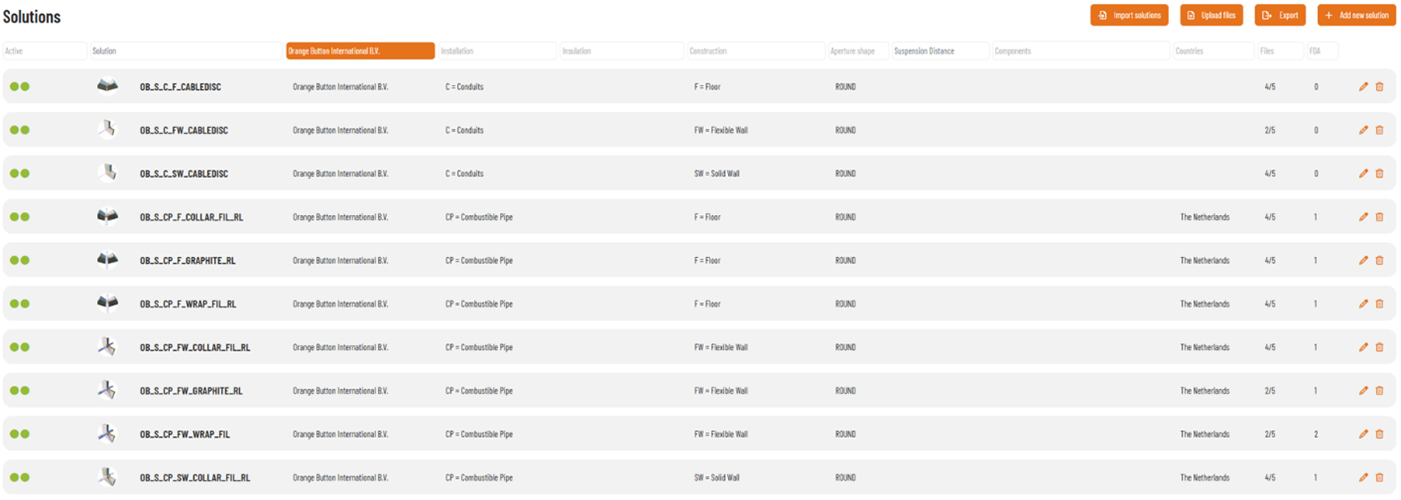
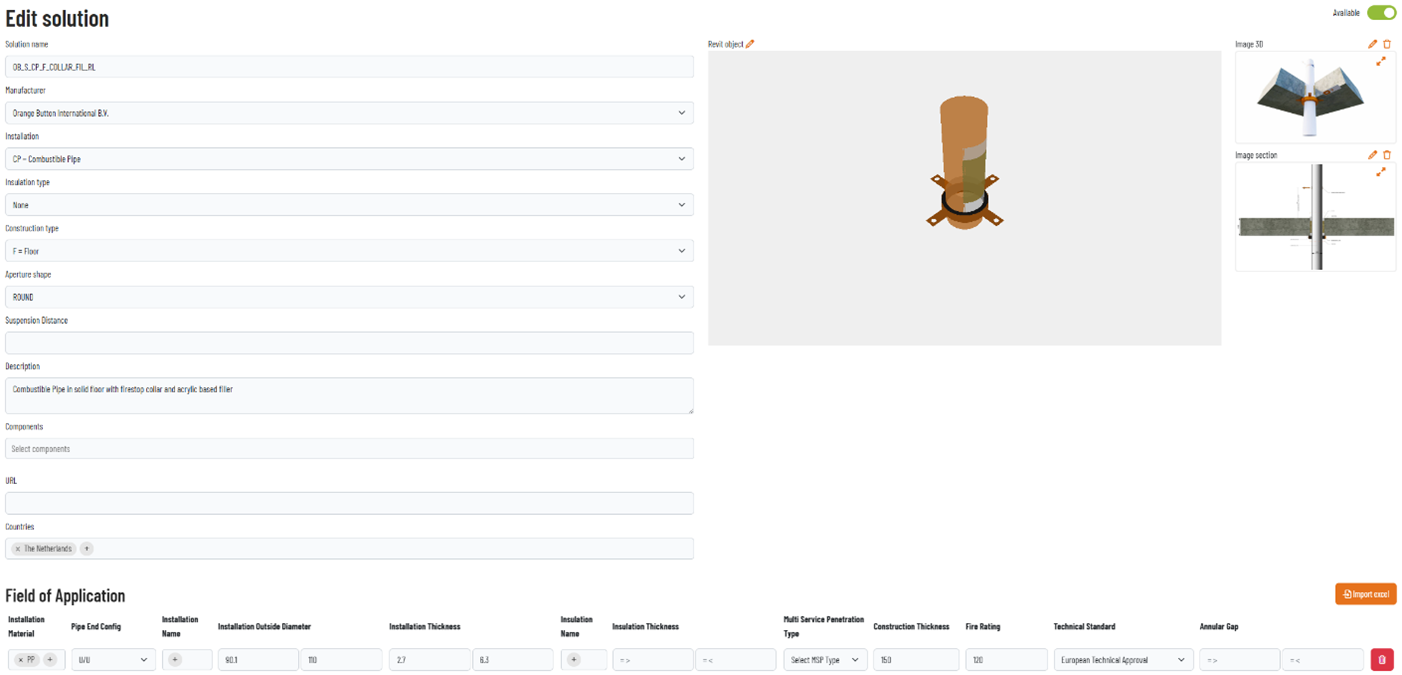
When you look at the Solution page, you clearly see all the files as described in this article.
Field of Application
One file type that needs more explanation is the Field of Application List. The Field of Application, or ‘FOA’ as we call it, acts as selection criteria for every ‘Activity’ created on our platform by an End-User. Therefore, it is essential, and the backbone of our complete Solution!
For instance, the FOA makes it possible to automatically select all the Manufacturer Solutions for every situation that Orange Button BIM has found in a project. Making every chosen Firestop Solution compliant to your tested Solutions.
‘Every Solution in our Solution List needs a Field of Application’.
This Field of Application can be added with the use of Excel. Orange Button will provide a couple for Excel Templates, that can be used to create these FOA’s.

When creating the Field of Application per Solution, note that:
- Not every cell have to be filled in with a value. Empty cells will not be checked when and End-User will select your Solution.
- Some cells can be filled with multiple values, for instance the InstallationMaterial.
- We use standard abbriviations for some values, these values are in the FOA Excel Templates.
Implementation Time
When you decide to be part of the Orange Button Platform, the first step will be to integrate your Solutions as described in this article.
‘But how long will this take? And will it take a lot of implementation time of my technical staff?’.
The answer to this question depends on the information already available. Most Manufacturers already have their solutions on the website, in technical documentation, or even in an online interactive selector. This rases the question:
- Is there already a list of solutions, and selection criteria available?
- Are there already 2D Sections and 3D images available?
Because this is the info, and documentation that Orange Button needs. Yes there is still work, to convert it to our Orange Button standard, using our abbreviations, but that will be done in Excel.
The creation of 3D (BIM) Objects will be done by Orange Button, and yes, this will take time. But this is part of our service, and an necessary step to make you BIM-ready as a Manufacturer!
To answer the question.
When the documentation is available, it will take:
- A kick-off meeting to explain and clarify all of the above.
- Some sessions and effort from the Manufacturer technical team to create the Solution List. This will define the Scope of Implementation.
- 30 minutes per Solution for our BIM Content Creators to make the BIM Solutions.
- Time and effort from the Manufacturer technical team to gather the section and 3D images.
Integration into the platform can be carried out once everything is ready, or gradually per system—instead of requiring the full scope of Solutions to be implemented all at once.
This will make the implementation time vary between roughly 1 – 3 Months.
Conclusion
Implementing your Solutions into the Orange Button platform is a structured and efficient process that builds directly on the documentation and data you already have. By preparing the Solution List, Solution Files, and Field of Application data, your systems become fully integrated and immediately usable by project teams through our automated BIM selection technology.
Our approach ensures that:
- Your tested Solutions are accurately represented and fully compliant in real-life project scenarios.
- Your products become BIM-ready without additional development work on your side.
- You maintain full control over the technical accuracy while Orange Button manages the digital and BIM conversion.
With collaboration between your technical team and our specialists—and thanks to tools such as Excel import and batch uploads—your Solutions can be live on the platform in just a few weeks.
Joining Orange Button not only digitizes your firestopping portfolio but positions your company at the forefront of industry innovation, ensuring your Solutions are selected correctly, compliantly, and at scale.
We look forward to supporting you throughout the onboarding and helping you unlock the full potential of your Solutions within Orange Button.
If you have any questions, don’t hesitate to contact our technical team!

OneClick BatchLink
OneClick BatchLink Orange Button has officially launched the OneClick BatchLink app. This innovative tool is designed to optimize the creation of new BIM projects and automize the linking workflow in Revit. When you start a new BIM project, one of the first steps, is to insert the BIM files into

Why is it important to integrate firestop design into BIM?
Why is it important to integrate firestop design into BIM? In the modern world of architecture and construction, Building Information Modeling (BIM) stands as a pivotal tool. It revolutionizes how buildings are designed, constructed, and managed. Among its many applications, integrating firestop design into BIM emerges as a crucial aspect.

What is OB Manufacturer?
What is Orange Button Manufacturer? What is “OB MANUFACTURER”? Introducing “OB MANUFACTURER” – an innovative software solution for manufacturers of passive fire protection products. This software is set to transform the landscape of firestop design.Developed with the specific requirements of firestop specialists and manufacturers in focus, “OB MANUFACTURER” presents a suite